
 Expert verified
 | TL;DR Summary: The SSP portal ICAI is the single online gateway for all CA students and members. Use it for exam form submission, article registration, and CPE hour tracking. Members can download membership certificates and renew their membership here. First-time users must register with their student or membership number. Exam forms are submitted online; no hard copies needed. Check CPE hours on the SSP dashboard or the separate CPE portal. Common login issues are fixed by adding @icai.org to your username. If the portal is down, wait or contact the SSP helpdesk at 99975 99975. |
The ICAI SSP portal (eservices.icai.org) is the single online platform for all CA students and members to register for courses, submit exam forms for Foundation, Intermediate, and Final exams, complete articleship registration (Form 102 and Form 103), track CPE hours, download membership certificates, and pay annual fees — login uses your Student Registration Number (SRN) or Member Registration Number (MRN) followed by @icai.org as the username, and first-time users must register through the “Existing Student/Member” or “New Student” option to receive credentials.
CPE hours are tracked on a separate but linked portal (cpeapp.icai.org) using your six-digit membership number as User ID and “cpe” plus membership number as the default password — structured hours reflect only after the Programme Organising Unit uploads attendance, and for login issues the SSP helpdesk is reachable at ss**********@**ai.in or 7877 966 966.
The ssp portal icai at eservices.icai.org replaced multiple old systems, giving students and members one place to manage registration, exams, articleship, and membership services. You cannot submit an exam form, register articleship, or download a membership certificate without logging into this portal.
This guide walks you through login steps, exam form submission, article registration, CPE hour checking, and common portal issues. You will also learn what to do when the portal goes down and why CA students choose PKC for articleship.
What Is the ICAI SSP Portal and Who Uses It?
The ICAI Self-Service Portal (SSP): https://eservices.icai.org/ is an online platform launched by the Institute of Chartered Accountants of India in 2018 to centralize services for CA students, members, and registered firms.
Before SSP, students and members had to use different systems for registration, exam forms, and CPE tracking. The portal consolidated everything into one place.
Three user groups access the SSP:
- CA Students: From Foundation to Final level. Students register for courses, submit exam forms, complete article training registration, and track application status.
- Members: Chartered Accountants (CAs) who have completed the course. Members renew membership, download certificates, check CPE hours, and apply for good standing certificates.
- CA Firms: Firms empanel for training, approve article registration forms (Form 102/103), and manage industrial training applications.
For members, the portal also integrates with the UDIN system. You cannot log into the UDIN portal without active SSP credentials. The old separate login system no longer works.
What the SSP handles:
| User Type | Key Services |
| Students | Course registration, exam forms, articleship, admit cards, result access |
| Members | CPE tracking, membership fee payment, COP surrender/renewal, certificate downloads |
| Firms | Firm registration, name change, merger/demerger, office addition/removal |
NOTE: Admit cards for Foundation, Intermediate, and Final exams are not downloaded by logging into SSP. ICAI has a separate link for admit cards on the portal’s homepage. You do not need to log in for that.
The portal login uses your Student Registration Number (SRN) if you are a student, or your Member Registration Number (MRN) if you are a member. New applicants who have not yet enrolled in any CA course also register directly through the SSP.
How to Create an Account on the ICAI SSP Portal
Your approach depends on whether you are brand new to ICAI or already have a registration number.
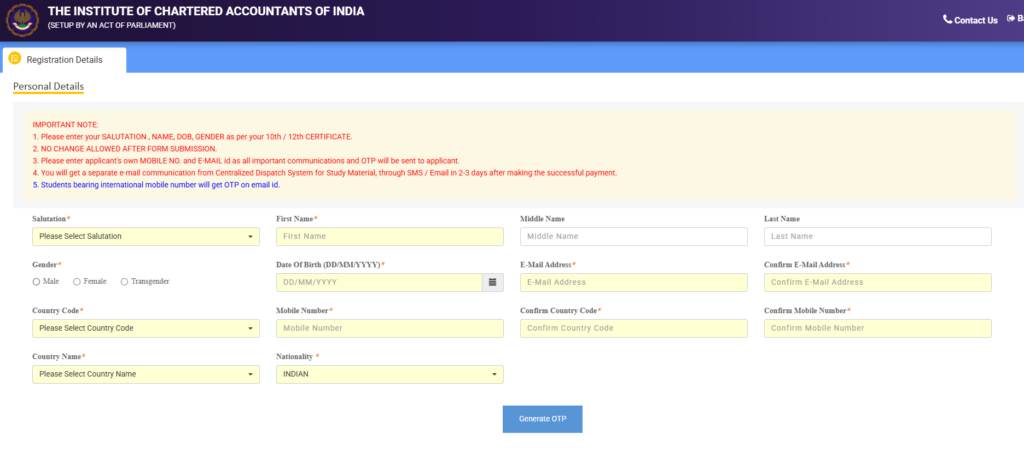
For First-Time Students (No SRN Yet)
- Go to eservices.icai.org
- Click “First Time User (New Student)? Click Here”
- You’ll be redirected to a page with a form
- Fill in: name, gender, date of birth, email, mobile number, country, nationality
- Click “Generate OTP”, enter the captcha, and submit
- Enter the OTP received on your mobile or verify through the email link
- Your User ID and password will be sent to your registered email and mobile
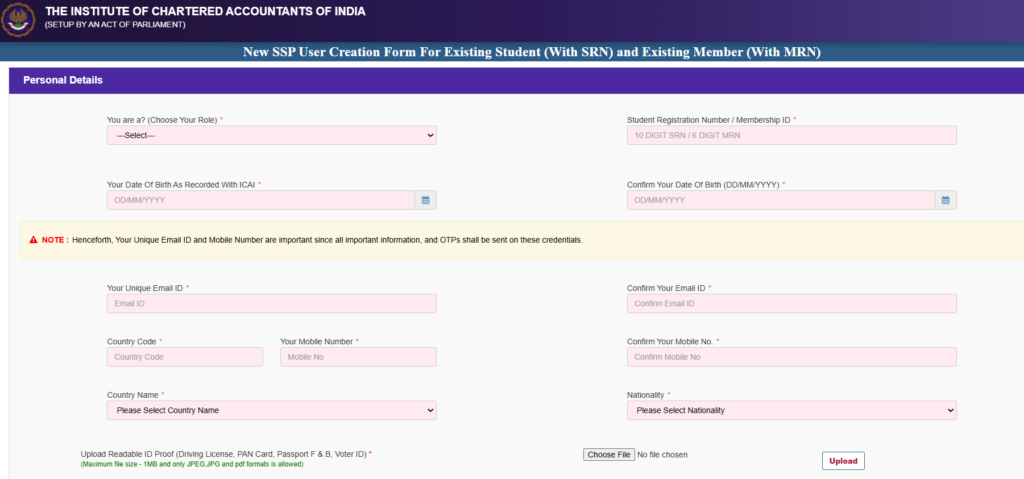
For Existing Students or Members (Already Have SRN/MRN)
If you registered with ICAI before SSP was launched, or simply have not set up your SSP login yet:
- Go to eservices.icai.org
- Click “Don’t Have a Login to SSP Yet? (Existing Student/Members) Click Here”
- You’ll be directed to the detailed form
- Choose Student or Member as applicable
- Enter your SRN or MRN along with your date of birth, then click Validate
- Update your communication details (email and mobile)
- Generate OTP, verify, and set your credentials
- Login details will arrive via email
Tips:
- Use a personal email address, not one from a coaching institute. ICAI uses this for every communication throughout your CA journey.
- Keep your registered mobile number active. OTP delays often happen when the number is outdated.
- Once registered, log in at eservices.icai.org using your User ID and password.
ICAI now mandates Aadhaar-based verification and live photograph uploads for new student registrations, so keep your Aadhaar details ready.
CA Student Services: Exam Registration & Article Training
Once logged into SSP, CA students can access different modules based on their current stage.
Course Registration
- Apply for CA Foundation, Intermediate, or Final courses
- Register under the Foundation Route or Direct Entry Route
- Upload supporting documents (Class 10 and 12 marksheets, Aadhaar, photograph, signature)
- Order study material through the Centralized Distribution System (CDS)
Once ICAI processes your application, you receive a Student Registration Number (SRN), which remains your permanent identity throughout the CA course.
Articleship Management
The entire articleship registration process from the deed to regional office approval is handled online. No physical submission to the Regional Office is required under the new scheme.
Article registration process:
- Log into SSP portal using your SSP credentials
- Click on “Article Functions”.
- Click the “Articleship” tab. Then click “Articleship Application”.
- Fill Form 102: Deed of Articles) and Form 103: Statement of Particulars for Registration registration (in triplicate—one for Institute, one for Principal, one for yourself). Both forms are mandatory, not alternatives
- Download the deed PDF. Print on ₹100 stamp paper (within 30 days of joining). Get it signed by the principal, yourself, and two witnesses.
- Upload the scanned copy of the executed deed back to SSP. Submit the application through SSP
- The Principal or firm approves the application through their SSP account. You’ll receive a confirmation notification after approval
- After Principal approval, the application is forwarded to your ICAI Regional Office. Wait approximately 7 days for RO approval. After RO approval, you are officially registered as an Article Assistant
Under the new CA scheme effective from July 2023, the articleship duration has been reduced from three years to two years. Students must clear both groups of CA Intermediate before beginning articleship.
The SSP also allows you to:
- Submit Form 109 for articleship transfer (ICAI typically takes 15–30 working days to process)
- Apply for permission to pursue additional courses via Form 112
- Track your submitted applications in real time
- Access secondment and termination forms
Exam Access
All three levels, Foundation, Intermediate, and Final, require exam form submission through the SSP. Results are also accessible through the portal.
How to Submit Your CA Exam Form on SSP
Exam form submission is one of the most common uses of SSP portal ICAI. Follow these exact steps for September 2026 exams.
Step 1: Check prerequisites before starting
- Your SSP login credentials must be active. If not, create the login at https://eservices.icai.org/.
- Your course registration (Foundation/Intermediate/Final) must be valid.
- Your photo and signature must be uploaded and approved on SSP.
- For Final students, articleship status must be updated in SSP.
Step 2: Fill and submit the form
- Go to eservices.icai.org and log in with your SSP credentials
- Navigate to Student Functions → Student Module → Exam Form.
- Select your exam level: Foundation, Intermediate, or Final.
- Choose your preferred exam centre. For May 2026 exams, you can select a centre within your city.
- Fill the profile form. Then fill the examination application form.
- Upload scanned copies of any required certificates (such as certificate of service for Final students).
- Pay the exam fee online using Master/Visa/Maestro/Rupay debit/credit cards, Net Banking, or BHIM UPI.
Step 3: After submission
The system generates a completed application form. You do not need to send a physical copy to ICAI. Keep a PDF copy for your records. You can check the application status under “Submitted Forms” on your SSP dashboard.
Important dates for 2026:
Exam | Normal Registration | Late Registration |
| May 2026 | Feb–March 2026 (likely closed) | March 2026 (likely closed) |
| September 2026 | May–June 2026 | July 2026 |
| November 2026 | July–August 2026 | September 2026 |
Always check the official ICAI exam notification for exact dates. Late submission attracts additional fees.
Member Services: CPE Hours, Certificate Download & More
After becoming a CA, you continue using SSP as a member. Member functions are accessed through a different section of the portal.
Key member services on SSP:
- Pay annual membership fees (due by 30th September each year)
- Apply for fresh membership or restore lapsed membership
- Obtain or surrender a Certificate of Practice (COP)
- Update personal and professional details — address, mobile, email
- Access the ICAI Digital Learning Hub (elearning.icai.org) using SSP credentials
- Download your membership certificate
- Apply for duplicate membership ID cards (Login → My Membership → Member Module → Other Forms → Duplicate ID Card)
Membership certificate download:
Members can download their ICAI membership certificate directly through the SSP. Log in using your MRN, navigate to the membership section, and access the certificate from the document download options.
CPE compliance:
ICAI’s Statement on Continuing Professional Education, 2023 revised the CPE hours requirements applicable from Calendar Year 2024 onwards, with consequential provisions for non-compliance effective from 1st January 2025.
CPE tracking is managed through a separate but linked portal, the CPE portal at cpeapp.icai.org, while your personal details are pulled from the SSP.
Members exempt from CPE requirements include:
- Members aged 60 years and above who do not hold a COP
- Female members for one calendar year on grounds of pregnancy
- Members in the year they first receive membership
Good Standing Certificate:
Many members need this for visa applications, job offers abroad, or regulatory filings. Apply through SSP. The certificate is issued digitally. You can download it directly from the portal.
ICAI’s Digital Learning Hub allows members to earn CPE hours (structured and unstructured) through videos and e-learning modules, accessible via SSP login credentials.
How to Check CPE Hours on the SSP Portal
Members must complete Continuing Professional Education (CPE) hours every year.
SSP integrates with the CPE portal, so you can check your hours without logging into multiple systems.
To check your CPE hours:
- Log into SSP with your member credentials (MR*@**ai.org and password).
- Look for the CPE dashboard or CPE section on your member home page.
- Your structured and unstructured CPE hours appear in the dashboard.
If the CPE hours are not visible on SSP, check the dedicated CPE portal at https://cpeapp.icai.org/member/login.
Use your six-digit membership number as the User ID. The default password is cpe followed by your six-digit membership number (example: cpe123456).
The CPE portal shows the status of hours based on attendance uploaded by Programme Organising Units (POUs).
If you see a discrepancy like hours you completed but do not reflect, contact the specific POU that organized the event.
ICAI states that CPE hours scored by members should reflect on both the SSP dashboard and the CPE portal.
Structured vs. Unstructured CPE hours:
CPE activities are split into two categories:
- Structured CPE hours: Attending seminars, conferences, workshops, and certificate courses organized by ICAI or approved POUs.
- Unstructured CPE hours: Self-study, writing articles, authoring books, and other professional development activities.
How structured hours get updated: Structured CPE hours are updated when attendance at the CPE event is uploaded by the Programme Organising Unit (POU).
This means your attendance alone does not immediately reflect, the organiser needs to upload the data.
Claiming unstructured hours: Members who have completed their unstructured learning activities must submit their self-declaration online by logging onto the CPE Portal on or before 31st May, pertaining to the previous calendar year.
You need a minimum number of structured and unstructured hours each block (generally 150 hours over three years, with at least 20 structured hours per year).
Check your specific requirement based on your membership year.
Most Common SSP Portal Issues and Fixes
If you have used the ICAI SSP portal for any length of time, you have probably run into at least one of these:
1. OTP not received
This is the most frequently reported issue. Try these in order:
- Check your spam or junk folder (the email OTP often lands there)
- Confirm that the mobile number and email on record with ICAI match what you are using
- Wait 15–20 minutes and retry, the portal sometimes experiences delays during peak periods
- Try logging in during off-peak hours (early morning works best)
2. “Invalid ID/Password” error
- Use the “Forgot Password” option on the login page
- Click “Forgot Password”, enter your registered email address, and click “Send Password Reset Link”. An OTP will be sent to your registered email ID. Check your inbox including spam folder, click the reset link, and set a new password.
- If the error persists after resetting, email: ss**********@**ai.in with your SRN/MRN, date of birth, registered email, and mobile number
3. Date of birth mismatch
Even a single day’s difference causes validation failure. Cross-check your ICAI registration letter against what you are entering.
If the records are incorrect, contact your regional ICAI office with your Class 10 marksheet for a correction.
4. Blank screen after login
You might not have logged out properly from a previous session.
Clear your browser cache and cookies. Then log in again. Always use the “Logout” button instead of just closing the browser.
5. Account locked after multiple failed attempts
This happens after repeated incorrect login attempts. Contact ICAI support to unlock, you will need to verify your identity.
Going forward, use the “Forgot Password” route rather than attempting multiple logins.
6. Payment failed during exam form submission
Failed transactions typically auto-reverse within 24 hours. Do not submit the form again immediately.
If the amount was debited but the form shows unpaid, email ss**********@**ai.in with your transaction ID and a screenshot.
7. Browser issues
The SSP portal works best on Google Chrome (version 50 and above), Mozilla Firefox (version 50 and above), or Internet Explorer 11 and above.
Outdated browsers often cause display and submission errors.
8. Name, photo, or qualification changes not reflecting
Changes submitted through SSP need approval from the regional ICAI office.
Approval takes 3-7 working days. If not approved beyond 10 days, follow up with your regional office by email or phone.
ICAI SSP Helpdesk contact:
- Email: ss**********@**ai.in
- Phone: 7877 966 966 (9:30 AM to 5:30 PM, Monday to Saturday)
SSP Portal Down? What to Do
ICAI occasionally takes the SSP portal offline for scheduled maintenance. This usually happens during low-traffic hours (weekend nights or late evenings).
When the portal is down, you cannot submit exam forms, check application status, or access any services.
Step 1: Verify it is actually down
Try accessing eservices.icai.org from a different browser and a different network (switch from Wi-Fi to mobile data). If it loads on another device, the issue is local.
Step 2: Check for ICAI announcements
ICAI publishes maintenance notices and downtime alerts on icai.org. Check the “Students” or “Members” section for any active announcements.
Step 3: Do not wait until the last day
If the portal is down during an exam form window, ICAI has on occasion extended deadlines — but this is not guaranteed. Submit your forms well before the deadline to avoid being caught out.
Step 4: Raise a helpdesk ticket
If you have an active SSP login, raise a ticket directly through the Helpdesk option after logging in. For those locked out, email ss**********@**ai.in with your details and the specific error message or screenshot.
Step 5: Try off-peak hours
Portal slowdowns during exam form periods are common. Logging in between 5 AM and 8 AM significantly improves load times and reduces form submission errors.
What not to do:
- Do not submit duplicate applications assuming the first one failed.
- If payment was deducted, the form was likely received.
- Always check your registered email for a confirmation before resubmitting.
Why CA Students Choose PKC for Articleship
Completing your ICAI article registration SSP is only the first step. Where you serve your articleship matters for your career.
Choosing your articleship firm is one of the most consequential decisions in your CA journey. The firm determines your practical exposure, your ability to balance study and work, and to a significant degree your options after qualifying.
PKC Management Consulting has over three decades of presence in the industry and serves around 1,500 clients across sectors including manufacturing, retail, IT, healthcare, education, and construction.
What makes PKC different:
- Multi-domain training: Students rotate through Audit, Tax, and Consulting. You do not get stuck in one department for three years. This is important because employers value exposure across service lines.
- Consulting as a core service line: Most Indian CA firms are built around statutory audit and direct tax. PKC offers management consulting as a core service line, with clients including TVS Group and Renault Nissan.
- Mid-size advantage: You get responsibility earlier than in Big 4 firms. PKC alumni have gone on to Big 4 leadership, MNC finance roles, and successful entrepreneurship.
What articles earn:
Stipend at PKC starts at ₹8,000 per month and can go up to ₹15,000 by the end of the articleship, depending on department, designation, and months of experience.
Where PKC alumni work:
PKC’s articleship alumni work at notable companies and MNCs including the Big 4 firms, Birla Group, L&T, Indian Oil, Infosys, Ashok Leyland, Barclays, and Vedanta.
If you are looking for structured articleship training in Chennai with real client exposure across industries, you can apply directly at pkcindia.com.
FAQs
Q1: How do I register on the ICAI SSP portal?
Go to eservices.icai.org. If you are a new student, click “First Time User” and fill in your details to receive login credentials via email. If you already have an SRN or MRN, click “Don’t Have a Login to SSP Yet” and validate using your registration number and date of birth.
Q2: How do I submit my CA exam form on the SSP portal?
Log in to eservices.icai.org, go to Student Services, and select the relevant exam form: Foundation, Intermediate, or Final. Verify your details, select your exam centre and group, pay the fee online, and save your confirmation receipt. Submit well before the deadline to avoid technical delays.
Q3: How do I check my CPE hours on the ICAI SSP portal?
CPE hours are tracked on a separate but linked portal: cpeapp.icai.org. Log in using your six-digit membership number as the User ID and “cpe” followed by your membership number as the default password. Your structured and unstructured hours will be displayed on your dashboard.
Q4: My ICAI SSP login is not working — what do I do?
Use the “Forgot Password” option on the login page. An OTP or reset link will be sent to your registered email. If OTPs are not arriving, check your spam folder. For persistent issues, email ss**********@**ai.in with your SRN/MRN, date of birth, and a description of the error. Helpdesk phone: 7877 966 966 (9:30 AM–5:30 PM).
Q5: How do I download my CA membership certificate from SSP?
Log in to eservices.icai.org using your MRN. Navigate to the membership section, then access the document downloads. Your membership certificate is available for direct download. Ensure your membership fee for the current year is paid before attempting this.
Q6: How do I register my article training on the SSP portal?
Log in to your SSP account, go to the Articleship menu, and complete Form 102 (Deed of Articles) followed by Form 103 (Statement of Particulars). Your Principal (the CA member) approves the form through their SSP login. You then upload the signed scanned copies of both forms. Form 103 must be submitted within 30 days of commencing articleship, delays attract a condonation fee.
Q7: How long does it take for CPE hours to reflect on SSP?
Structured CPE hours are updated only after the Programme Organising Unit uploads attendance data, not immediately after you attend. This can take days to weeks depending on the organiser. Unstructured CPE hours are self-declared and must be submitted online by 31st May for the previous calendar year. If hours are missing, first update your details on the SSP, then email cp******@**ai.in.